Buy allphone.eu ?
We are moving the project
allphone.eu .
Are you interested in purchasing the domain
allphone.eu ?
domain@kv-gmbh.de · 0541-91531010
Buy allphone.eu ?
Can you switch between two webcams?
Yes, it is possible to switch between two webcams on a computer. Most video conferencing software and applications allow users to select which webcam they want to use for their video calls or meetings. Users can typically switch between webcams by accessing the settings or preferences within the software and selecting the desired webcam from the list of available devices. Additionally, some computers have the capability to switch between multiple connected webcams through their operating system settings. **
Which drivers are needed for webcams?
Webcams typically require drivers to function properly. These drivers are specific to the make and model of the webcam and are usually provided by the manufacturer. The drivers allow the webcam to communicate with the operating system and other software, enabling it to capture and transmit video and audio. It's important to ensure that the correct drivers are installed for the specific webcam to ensure optimal performance. **


Similar search terms for Webcams
Top-Angebote
Products related to Webcams:
-
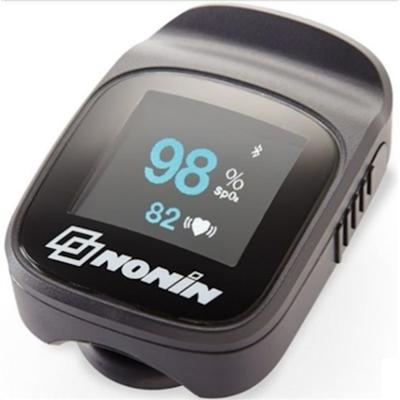
Nonin Medical NoninConnect™ Finger Pulse Oximeter with Bluetooth® Smart Wireless Technology""" NoninConnect™ Finger Pulse Oximeter with Bluetooth® Smart Wireless Technology for Clinicians and Patients — Nonin TruO2® OTC 3250 (OTC, No Prescription Required) The NoninConnect™ finger pulse oximeter is an over-the-counter (OTC) device , made..."299,00 $*Shipping: 0,00 $Secure redirect to the provider
-
Steelplay MetalTech Radian Wireless Gaming Headset - Wireless and Wired Connectivity, Detachable Microphone, Volume ControlsThe Steelplay MetalTech Radian wireless gaming headset offers flexible audio for gaming and everyday entertainment. It's designed for use across consoles, computers, and compatible mobile devices. You can connect wirelessly through the supplied low-latency USB-C dongle or use the detachable 3.5 mm braided cable for a wired connection. The headset features a comfortable, adaptable design with soft ear cushions and an adjustable padded headband for a secure fit during longer gaming, music, and film sessions. The detachable boom microphone supports in-game chat and can be removed when not required. Key features include wireless and wired connectivity, a supplied USB-C dongle for compatible devices, a detachable microphone for flexible voice chat, integrated volume and microphone controls, and a detachable 2 m braided 3.5 mm audio cable. The headset also includes a 1.5 m braided USB-C charging cable and is compatible with PS5, PS4, Nintendo Switch, PC, Mac, and compatible Android or iOS devices using the supplied dongle.26,99 £*Shipping: 3,95 £Secure redirect to the provider
-
On Spot Shop DC Wireless Remote Control Switch With Relay Output, RF Transmitter And Receiver For LED Lighting & Smart Device device With 1 RemoteReliable Control for Lighting & Automation Experience seamless control with the DC12V 8CH 8 Channel Wireless Remote Control LED Light Switch Relay Output Radio RF Transmitter and 315433 MHz Receiver. Designed for convenience, this system allows you...39,97 $*Shipping: 0,00 $Secure redirect to the provider


-
Are there webcams without a wide-angle lens?
Yes, there are webcams available without a wide-angle lens. Some webcams are designed with a standard lens that captures a narrower field of view compared to wide-angle lenses. These webcams are often used for specific purposes where a wide-angle view is not necessary, such as video conferencing or live streaming from a fixed position. Users can choose webcams with different lens options based on their specific needs and preferences. **
-
How can I use two webcams simultaneously on Skype?
To use two webcams simultaneously on Skype, you will need to have a computer with multiple USB ports. Connect each webcam to a separate USB port on your computer. Then, open Skype and go to the settings menu. Under the audio and video settings, you should be able to select which webcam you want to use for video calls. Choose the appropriate webcam for each call, and you should be able to use two webcams simultaneously on Skype. **
-
Why are the webcams of streamers always so blurry?
The blurriness of streamers' webcams can be due to a few reasons. One common reason is that streamers may not have high-quality webcams, as they can be expensive and not all streamers have the budget for top-of-the-line equipment. Additionally, internet connection and bandwidth can also affect the quality of the webcam feed, leading to blurriness. Lastly, the streaming platform itself may compress the video feed, resulting in a loss of image quality. Overall, a combination of factors such as equipment quality, internet connection, and platform compression can contribute to the blurriness of streamers' webcams. **
-
How can you record time-lapse videos with Logitech webcams?
To record time-lapse videos with Logitech webcams, you can use third-party software such as OBS Studio or Logitech Capture. These software programs allow you to adjust settings like interval time between shots and duration of the time-lapse. Simply connect your Logitech webcam to your computer, open the software, set up the desired parameters, and start recording your time-lapse video. Remember to ensure your webcam is stable and positioned correctly to capture the desired time-lapse footage. **


How can one record time-lapse videos with Logitech webcams?
To record time-lapse videos with Logitech webcams, you can use third-party software such as OBS Studio or Logitech Capture. These software programs allow you to set intervals for capturing images and then compile them into a time-lapse video. Simply connect your Logitech webcam to your computer, open the software, set the desired time interval for capturing images, and start recording. Once you have captured enough images, the software will automatically compile them into a time-lapse video for you to save and share. **
What buying tips are there for webcams for scanning invoices?
When buying webcams for scanning invoices, it's important to consider the resolution and image quality of the webcam. Look for a webcam with at least 1080p resolution to ensure clear and detailed scans of the invoices. Additionally, consider the autofocus and low-light performance of the webcam to ensure it can capture clear images in various lighting conditions. It's also important to choose a webcam with a wide field of view to capture the entire invoice without needing to reposition the camera. Finally, consider the compatibility of the webcam with your scanning software and any additional features such as built-in microphones or privacy covers. **
Top-Angebote
Products related to Webcams:
-
Nonin Medical NoninConnect™ Finger Pulse Oximeter with Bluetooth® Smart Wireless Technology""" NoninConnect™ Finger Pulse Oximeter with Bluetooth® Smart Wireless Technology for Clinicians and Patients — Nonin TruO2® OTC 3250 (OTC, No Prescription Required) The NoninConnect™ finger pulse oximeter is an over-the-counter (OTC) device , made..."299,00 $*Shipping: 0,00 $Secure redirect to the provider
-
Can you switch between two webcams?
Yes, it is possible to switch between two webcams on a computer. Most video conferencing software and applications allow users to select which webcam they want to use for their video calls or meetings. Users can typically switch between webcams by accessing the settings or preferences within the software and selecting the desired webcam from the list of available devices. Additionally, some computers have the capability to switch between multiple connected webcams through their operating system settings. **
-
Which drivers are needed for webcams?
Webcams typically require drivers to function properly. These drivers are specific to the make and model of the webcam and are usually provided by the manufacturer. The drivers allow the webcam to communicate with the operating system and other software, enabling it to capture and transmit video and audio. It's important to ensure that the correct drivers are installed for the specific webcam to ensure optimal performance. **
-
Are there webcams without a wide-angle lens?
Yes, there are webcams available without a wide-angle lens. Some webcams are designed with a standard lens that captures a narrower field of view compared to wide-angle lenses. These webcams are often used for specific purposes where a wide-angle view is not necessary, such as video conferencing or live streaming from a fixed position. Users can choose webcams with different lens options based on their specific needs and preferences. **
-
How can I use two webcams simultaneously on Skype?
To use two webcams simultaneously on Skype, you will need to have a computer with multiple USB ports. Connect each webcam to a separate USB port on your computer. Then, open Skype and go to the settings menu. Under the audio and video settings, you should be able to select which webcam you want to use for video calls. Choose the appropriate webcam for each call, and you should be able to use two webcams simultaneously on Skype. **
Similar search terms for Webcams
-
Steelplay MetalTech Radian Wireless Gaming Headset - Wireless and Wired Connectivity, Detachable Microphone, Volume ControlsThe Steelplay MetalTech Radian wireless gaming headset offers flexible audio for gaming and everyday entertainment. It's designed for use across consoles, computers, and compatible mobile devices. You can connect wirelessly through the supplied low-latency USB-C dongle or use the detachable 3.5 mm braided cable for a wired connection. The headset features a comfortable, adaptable design with soft ear cushions and an adjustable padded headband for a secure fit during longer gaming, music, and film sessions. The detachable boom microphone supports in-game chat and can be removed when not required. Key features include wireless and wired connectivity, a supplied USB-C dongle for compatible devices, a detachable microphone for flexible voice chat, integrated volume and microphone controls, and a detachable 2 m braided 3.5 mm audio cable. The headset also includes a 1.5 m braided USB-C charging cable and is compatible with PS5, PS4, Nintendo Switch, PC, Mac, and compatible Android or iOS devices using the supplied dongle.26,99 £*Shipping: 3,95 £Secure redirect to the provider
-
On Spot Shop DC Wireless Remote Control Switch With Relay Output, RF Transmitter And Receiver For LED Lighting & Smart Device device With 1 RemoteReliable Control for Lighting & Automation Experience seamless control with the DC12V 8CH 8 Channel Wireless Remote Control LED Light Switch Relay Output Radio RF Transmitter and 315433 MHz Receiver. Designed for convenience, this system allows you...39,97 $*Shipping: 0,00 $Secure redirect to the provider
-
NextBase IQ 4K Smart Dash Cam – Latest December Update, Inbuilt Cabin Car Cam, 4G ConnectivityOverview: The Nextbase IQ 4K Smart Dash Cam combines ultra-high-definition recording with advanced safety and convenience features. With the latest December update, it offers enhanced live view capabilities, smart parking mode, witness mode, SOS response, and voice control. Equipped with inbuilt cabin camera and 4G connectivity, this dash cam ensures comprehensive vehicle and passenger monitoring, delivering peace of mind on every journey. Product Description: Capture every detail on the road with the Nextbase IQ 4K Smart Dash Cam. The 4K ultra HD recording provides crystal-clear video footage of your surroundings, while the inbuilt cabin camera monitors the interior of your vehicle. Stay connected with 4G for live viewing, instant notifications, and SOS emergency response. Smart parking mode protects your vehicle while parked, and witness mode offers crucial video evidence in the event of an incident. Voice control allows hands-free operation, making it safer and easier to use. The latest software update further improves performance and user experience. Key Features: Ultra-high-definition 4K recording for clear, detailed footage Inbuilt cabin camera for interior monitoring 4G connectivity for live view and instant notifications Smart parking mode to monitor your vehicle while parked Witness mode for capturing crucial incident evidence SOS response feature for emergency assistance Voice control for hands-free operation Latest December software update with enhanced features399,00 £*Shipping: 0,00 £Secure redirect to the provider
-
The Handy Homestead DIY Wooden Walkie Talkie Kit For Kids STEM Building Wireless Communication Toy DIY Wooden Walkie Talkie Kit For Kids STEM Building Wireless Communication ToySpark your childs I built this! moment with a handson project that turns curiosity into real play. This 2pcs DIY wooden walkie talkie kit lets kids assemble two working communication toys while exploring basic electronics, sound, and signal...54,97 $*Shipping: 0,00 $Secure redirect to the provider
-
Why are the webcams of streamers always so blurry?
The blurriness of streamers' webcams can be due to a few reasons. One common reason is that streamers may not have high-quality webcams, as they can be expensive and not all streamers have the budget for top-of-the-line equipment. Additionally, internet connection and bandwidth can also affect the quality of the webcam feed, leading to blurriness. Lastly, the streaming platform itself may compress the video feed, resulting in a loss of image quality. Overall, a combination of factors such as equipment quality, internet connection, and platform compression can contribute to the blurriness of streamers' webcams. **
-
How can you record time-lapse videos with Logitech webcams?
To record time-lapse videos with Logitech webcams, you can use third-party software such as OBS Studio or Logitech Capture. These software programs allow you to adjust settings like interval time between shots and duration of the time-lapse. Simply connect your Logitech webcam to your computer, open the software, set up the desired parameters, and start recording your time-lapse video. Remember to ensure your webcam is stable and positioned correctly to capture the desired time-lapse footage. **
-
How can one record time-lapse videos with Logitech webcams?
To record time-lapse videos with Logitech webcams, you can use third-party software such as OBS Studio or Logitech Capture. These software programs allow you to set intervals for capturing images and then compile them into a time-lapse video. Simply connect your Logitech webcam to your computer, open the software, set the desired time interval for capturing images, and start recording. Once you have captured enough images, the software will automatically compile them into a time-lapse video for you to save and share. **
-
What buying tips are there for webcams for scanning invoices?
When buying webcams for scanning invoices, it's important to consider the resolution and image quality of the webcam. Look for a webcam with at least 1080p resolution to ensure clear and detailed scans of the invoices. Additionally, consider the autofocus and low-light performance of the webcam to ensure it can capture clear images in various lighting conditions. It's also important to choose a webcam with a wide field of view to capture the entire invoice without needing to reposition the camera. Finally, consider the compatibility of the webcam with your scanning software and any additional features such as built-in microphones or privacy covers. **
* All prices are inclusive of VAT and, if applicable, plus shipping costs. The offer information is based on the details provided by the respective shop and is updated through automated processes. Real-time updates do not occur, so deviations can occur in individual cases. ** Note: Parts of this content were created by AI.