Buy allphone.eu ?
We are moving the project
allphone.eu .
Are you interested in purchasing the domain
allphone.eu ?
domain@kv-gmbh.de · 0541-91531010
Buy allphone.eu ?
Can you record footage in Zelda?
Yes, in some of the Zelda games, players have the ability to record footage of their gameplay. For example, in The Legend of Zelda: Breath of the Wild, players can use the Nintendo Switch's built-in capture feature to record and save short clips of their gameplay. Additionally, players can use external capture devices to record longer gameplay footage from their console. This allows players to capture and share their favorite moments and experiences from the game. **
Why can't I open my drone footage?
There could be several reasons why you are unable to open your drone footage. One possibility is that the file format of the footage is not compatible with the software you are using to view it. Another reason could be that the file is corrupted or damaged. Additionally, there may be an issue with the storage device where the footage is saved. It is recommended to try opening the footage with different software, check for any file corruption, and ensure that the storage device is functioning properly. **


Similar search terms for Footage
Top-Angebote
Products related to Footage:
-
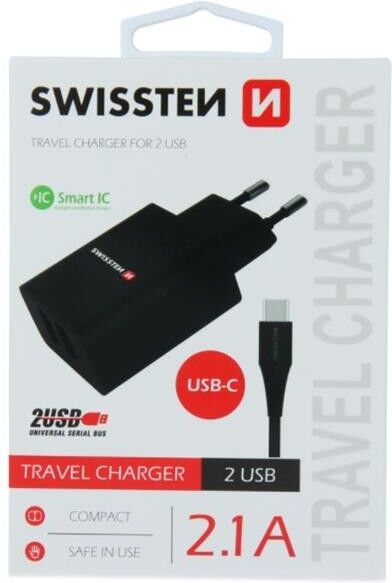
SWISSTEN 22071510 Charger Device, mobile communicationPlug Type: Schuko; Connectors/Plugs: USB type-C, USB; Charge Mode: GaN, PD; Overcharging protection: Yes; Overheating protection: Yes; Short Circuit Protection: Yes; Colour: black; Number of inlets/outlets: 2; Power [W]: 126,59 £*Shipping: 8,45 £Secure redirect to the provider
-
HyperX Pulsefire Fuse Wireless Gaming Mouse – Lightweight RGB Gaming Mouse with Dual Wireless ConnectivityOverview The HyperX Pulsefire Fuse Wireless Gaming Mouse is designed for gamers who want precision, comfort, and wireless freedom. Featuring a lightweight frame and microline grip textured panels, this gaming mouse provides excellent control during fast-paced gameplay. With customisable DPI presets, dual wireless connectivity, and RGB lighting control through HyperX NGENUITY software, the Pulsefire Fuse delivers responsive performance and personalised gaming settings. Its ergonomic design ensures comfortable use for extended gaming sessions while maintaining reliable wireless performance. Key Features Dual Wireless Connectivity – Connect via low-latency 2.4GHz wireless or Bluetooth for flexible gaming setups. Lightweight Gaming Design – Built for fast movement and improved control during gameplay. Microline Grip Textured Panels – Enhanced grip for better accuracy and stability. Customisable DPI Presets – Adjust sensitivity settings to suit different gaming styles. RGB Lighting Effects – Personalise lighting with custom RGB settings. HyperX NGENUITY Software Support – Configure DPI levels, button functions, and RGB lighting. High-Precision Gaming Sensor – Accurate tracking for competitive gameplay. Long Battery Life – Designed to support extended gaming sessions. Ergonomic Shape – Comfortable grip suitable for long hours of use. Benefits The HyperX Pulsefire Fuse Wireless Gaming Mouse provides gamers with responsive control and flexibility thanks to its dual wireless connectivity options. The lightweight build allows for quick movements and improved accuracy, while the textured grip panels ensure the mouse remains stable during intense gaming moments. Customisable DPI presets allow players to adjust sensitivity for different game genres, whether precision aiming in FPS games or fast movement in strategy and action titles. With RGB lighting customisation and HyperX NGENUITY software integration, users can personalise their setup to match their gaming style. Designed for comfort and reliability, the Pulsefire Fuse is an excellent choice for gamers who want wireless performance without compromising control. Specifications Specification Details Brand HyperX Model Pulsefire Fuse Wireless EAN / Barcode [Ean] Type Wireless Gaming Mouse Connectivity 2.4GHz Wireless / Bluetooth Sensor Type High Precision Gaming Sensor DPI Settings Customisable DPI Presets Lighting RGB Customisable Lighting Software HyperX NGENUITY Grip Microline Grip Textured Panels Design Lightweight Gaming Frame Buttons Programmable Buttons Battery Rechargeable / Long Battery Life Compatibility Windows PC34,00 £*Shipping: 0,00 £Secure redirect to the provider



-
Was the shoplifting paid with camera footage?
It is not clear whether the shoplifting was paid with camera footage. The question seems to be asking if the shoplifting was captured on camera footage, and if that footage was used to identify and prosecute the shoplifter. Without more context, it is difficult to determine if camera footage was involved in the resolution of the shoplifting incident. **
-
Where can I find video footage to practice?
You can find video footage to practice on various online platforms such as YouTube, Vimeo, and stock video websites like Shutterstock or Adobe Stock. Additionally, many filmmakers and videographers share their work on social media platforms like Instagram and TikTok, which can also be a great source for practice material. Lastly, you can also consider joining online communities or forums dedicated to video production, where members often share their work for feedback and collaboration. **
-
How can I get video footage for an edit?
There are several ways to obtain video footage for an edit. You can shoot your own footage using a camera or smartphone, use stock footage websites to purchase or download free clips, collaborate with other filmmakers or videographers to share footage, or use footage from public domain sources. Additionally, you can consider reaching out to local businesses or organizations to see if they have any relevant footage that they would be willing to share or license for your project. **
-
How can 3D models be extracted from video footage?
3D models can be extracted from video footage using a process called photogrammetry. This involves capturing multiple images of an object or scene from different angles and then using specialized software to analyze the images and create a 3D model. The software identifies common points in the images and uses them to calculate the position and shape of the object in 3D space. Once the 3D model is generated, it can be further refined and edited to create a detailed and accurate representation of the original object or scene. **

Where can I find film footage to practice with?
You can find film footage to practice with from various sources such as stock footage websites, public domain archives, and creative commons platforms. Websites like Shutterstock, Adobe Stock, and Pond5 offer a wide range of professional film footage for purchase. Additionally, platforms like Internet Archive and Creative Commons provide access to a collection of public domain and freely available footage that can be used for practice and educational purposes. Always make sure to check the licensing and usage rights before using any film footage for practice. **
How can I play GoPro footage on the television?
To play GoPro footage on the television, you can connect your GoPro to the TV using an HDMI cable. Simply plug one end of the HDMI cable into the HDMI port on your GoPro and the other end into an available HDMI port on your TV. Then, switch your TV to the corresponding HDMI input to view the footage. Alternatively, you can transfer the footage from your GoPro to a computer or external storage device and then play it on the TV using a media player or streaming device. **
Top-Angebote
Products related to Footage:
-
Can you record footage in Zelda?
Yes, in some of the Zelda games, players have the ability to record footage of their gameplay. For example, in The Legend of Zelda: Breath of the Wild, players can use the Nintendo Switch's built-in capture feature to record and save short clips of their gameplay. Additionally, players can use external capture devices to record longer gameplay footage from their console. This allows players to capture and share their favorite moments and experiences from the game. **
-
Why can't I open my drone footage?
There could be several reasons why you are unable to open your drone footage. One possibility is that the file format of the footage is not compatible with the software you are using to view it. Another reason could be that the file is corrupted or damaged. Additionally, there may be an issue with the storage device where the footage is saved. It is recommended to try opening the footage with different software, check for any file corruption, and ensure that the storage device is functioning properly. **
-
Was the shoplifting paid with camera footage?
It is not clear whether the shoplifting was paid with camera footage. The question seems to be asking if the shoplifting was captured on camera footage, and if that footage was used to identify and prosecute the shoplifter. Without more context, it is difficult to determine if camera footage was involved in the resolution of the shoplifting incident. **
-
Where can I find video footage to practice?
You can find video footage to practice on various online platforms such as YouTube, Vimeo, and stock video websites like Shutterstock or Adobe Stock. Additionally, many filmmakers and videographers share their work on social media platforms like Instagram and TikTok, which can also be a great source for practice material. Lastly, you can also consider joining online communities or forums dedicated to video production, where members often share their work for feedback and collaboration. **
Similar search terms for Footage
-
SWISSTEN 22071510 Charger Device, mobile communicationPlug Type: Schuko; Connectors/Plugs: USB type-C, USB; Charge Mode: GaN, PD; Overcharging protection: Yes; Overheating protection: Yes; Short Circuit Protection: Yes; Colour: black; Number of inlets/outlets: 2; Power [W]: 126,59 £*Shipping: 8,45 £Secure redirect to the provider
-
HyperX Pulsefire Fuse Wireless Gaming Mouse – Lightweight RGB Gaming Mouse with Dual Wireless ConnectivityOverview The HyperX Pulsefire Fuse Wireless Gaming Mouse is designed for gamers who want precision, comfort, and wireless freedom. Featuring a lightweight frame and microline grip textured panels, this gaming mouse provides excellent control during fast-paced gameplay. With customisable DPI presets, dual wireless connectivity, and RGB lighting control through HyperX NGENUITY software, the Pulsefire Fuse delivers responsive performance and personalised gaming settings. Its ergonomic design ensures comfortable use for extended gaming sessions while maintaining reliable wireless performance. Key Features Dual Wireless Connectivity – Connect via low-latency 2.4GHz wireless or Bluetooth for flexible gaming setups. Lightweight Gaming Design – Built for fast movement and improved control during gameplay. Microline Grip Textured Panels – Enhanced grip for better accuracy and stability. Customisable DPI Presets – Adjust sensitivity settings to suit different gaming styles. RGB Lighting Effects – Personalise lighting with custom RGB settings. HyperX NGENUITY Software Support – Configure DPI levels, button functions, and RGB lighting. High-Precision Gaming Sensor – Accurate tracking for competitive gameplay. Long Battery Life – Designed to support extended gaming sessions. Ergonomic Shape – Comfortable grip suitable for long hours of use. Benefits The HyperX Pulsefire Fuse Wireless Gaming Mouse provides gamers with responsive control and flexibility thanks to its dual wireless connectivity options. The lightweight build allows for quick movements and improved accuracy, while the textured grip panels ensure the mouse remains stable during intense gaming moments. Customisable DPI presets allow players to adjust sensitivity for different game genres, whether precision aiming in FPS games or fast movement in strategy and action titles. With RGB lighting customisation and HyperX NGENUITY software integration, users can personalise their setup to match their gaming style. Designed for comfort and reliability, the Pulsefire Fuse is an excellent choice for gamers who want wireless performance without compromising control. Specifications Specification Details Brand HyperX Model Pulsefire Fuse Wireless EAN / Barcode [Ean] Type Wireless Gaming Mouse Connectivity 2.4GHz Wireless / Bluetooth Sensor Type High Precision Gaming Sensor DPI Settings Customisable DPI Presets Lighting RGB Customisable Lighting Software HyperX NGENUITY Grip Microline Grip Textured Panels Design Lightweight Gaming Frame Buttons Programmable Buttons Battery Rechargeable / Long Battery Life Compatibility Windows PC34,00 £*Shipping: 0,00 £Secure redirect to the provider
-
Steelplay MetalTech Radian Wireless Gaming Headset - Wireless and Wired Connectivity, Detachable Microphone, Volume ControlsThe Steelplay MetalTech Radian wireless gaming headset offers flexible audio for gaming and everyday entertainment. It's designed for use across consoles, computers, and compatible mobile devices. You can connect wirelessly through the supplied low-latency USB-C dongle or use the detachable 3.5 mm braided cable for a wired connection. The headset features a comfortable, adaptable design with soft ear cushions and an adjustable padded headband for a secure fit during longer gaming, music, and film sessions. The detachable boom microphone supports in-game chat and can be removed when not required. Key features include wireless and wired connectivity, a supplied USB-C dongle for compatible devices, a detachable microphone for flexible voice chat, integrated volume and microphone controls, and a detachable 2 m braided 3.5 mm audio cable. The headset also includes a 1.5 m braided USB-C charging cable and is compatible with PS5, PS4, Nintendo Switch, PC, Mac, and compatible Android or iOS devices using the supplied dongle.26,99 £*Shipping: 3,95 £Secure redirect to the provider
-
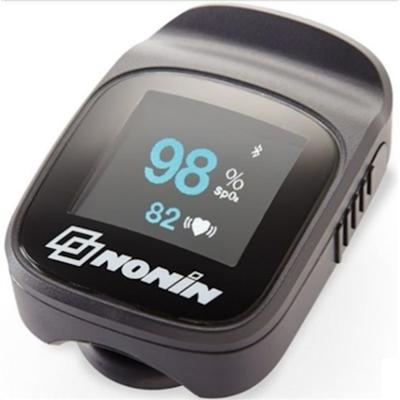
Nonin Medical NoninConnect™ Finger Pulse Oximeter with Bluetooth® Smart Wireless Technology""" NoninConnect™ Finger Pulse Oximeter with Bluetooth® Smart Wireless Technology for Clinicians and Patients — Nonin TruO2® OTC 3250 (OTC, No Prescription Required) The NoninConnect™ finger pulse oximeter is an over-the-counter (OTC) device , made..."299,00 $*Shipping: 0,00 $Secure redirect to the provider
-
How can I get video footage for an edit?
There are several ways to obtain video footage for an edit. You can shoot your own footage using a camera or smartphone, use stock footage websites to purchase or download free clips, collaborate with other filmmakers or videographers to share footage, or use footage from public domain sources. Additionally, you can consider reaching out to local businesses or organizations to see if they have any relevant footage that they would be willing to share or license for your project. **
-
How can 3D models be extracted from video footage?
3D models can be extracted from video footage using a process called photogrammetry. This involves capturing multiple images of an object or scene from different angles and then using specialized software to analyze the images and create a 3D model. The software identifies common points in the images and uses them to calculate the position and shape of the object in 3D space. Once the 3D model is generated, it can be further refined and edited to create a detailed and accurate representation of the original object or scene. **
-
Where can I find film footage to practice with?
You can find film footage to practice with from various sources such as stock footage websites, public domain archives, and creative commons platforms. Websites like Shutterstock, Adobe Stock, and Pond5 offer a wide range of professional film footage for purchase. Additionally, platforms like Internet Archive and Creative Commons provide access to a collection of public domain and freely available footage that can be used for practice and educational purposes. Always make sure to check the licensing and usage rights before using any film footage for practice. **
-
How can I play GoPro footage on the television?
To play GoPro footage on the television, you can connect your GoPro to the TV using an HDMI cable. Simply plug one end of the HDMI cable into the HDMI port on your GoPro and the other end into an available HDMI port on your TV. Then, switch your TV to the corresponding HDMI input to view the footage. Alternatively, you can transfer the footage from your GoPro to a computer or external storage device and then play it on the TV using a media player or streaming device. **
* All prices are inclusive of VAT and, if applicable, plus shipping costs. The offer information is based on the details provided by the respective shop and is updated through automated processes. Real-time updates do not occur, so deviations can occur in individual cases. ** Note: Parts of this content were created by AI.