Buy allphone.eu ?
We are moving the project
allphone.eu .
Are you interested in purchasing the domain
allphone.eu ?
domain@kv-gmbh.de · 0541-91531010
Buy allphone.eu ?
Does the Medion Wireless LAN Internet Radio have interruptions?
The Medion Wireless LAN Internet Radio may experience interruptions depending on the strength and stability of the wireless network it is connected to. If the network experiences interference or signal drops, it can result in interruptions to the radio's streaming. Additionally, the quality of the internet connection and the distance from the router can also impact the radio's performance. It is important to ensure a strong and stable wireless network to minimize interruptions while using the Medion Wireless LAN Internet Radio. **
How do I activate the wireless function on Medion?
To activate the wireless function on a Medion device, you can typically do so by pressing the wireless function key on the keyboard. This key is usually labeled with an icon that looks like a radio tower or antenna. Pressing this key should toggle the wireless function on or off. Additionally, you can also activate the wireless function by accessing the network settings in the control panel or system settings and enabling the wireless network adapter. **
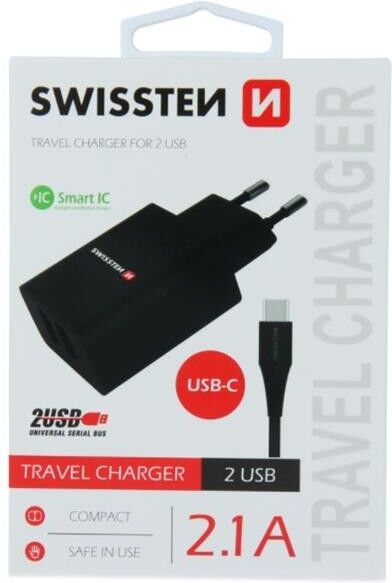
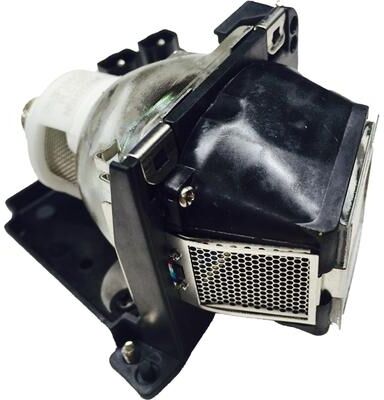
Similar search terms for Medion
Top-Angebote
Products related to Medion:
-
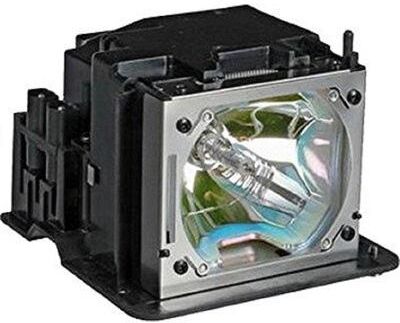
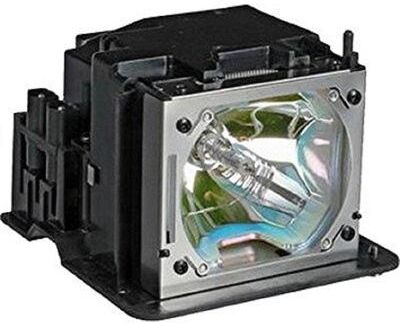
AL™ Series Lamp & Housing for the Medion MD30053 Projector - 90 Day WarrantyNew aftermarket Lamp and Housing for the following Medion models: MD30053 Lamp Specifications Specifications Data Product Code MD30053 Part Type Lamp and Housing Warranty 90 Days Condition New Lamp Type Genuine AL™ Series Discounts Available Volume,...54,99 $*Shipping: 0,00 $Secure redirect to the provider
-
Jaspertronics™ Original Lamp & Housing for the Medion MD30053 Projector - 1 Year WarrantyNew Jaspertronics™ Original Lamp & Housing Module for the following Medion models: MD30053 Lamp Specifications Specifications Data Product Code MD30053 Part Type Lamp and Housing Warranty Industry Leading 1 Year Warranty Condition New Lamp Type...98,99 $*Shipping: 0,00 $Secure redirect to the provider
-
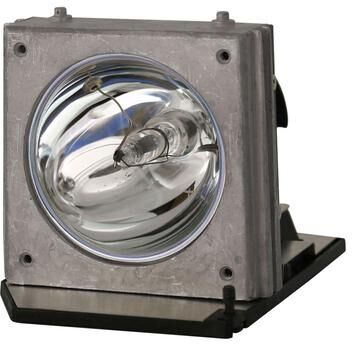
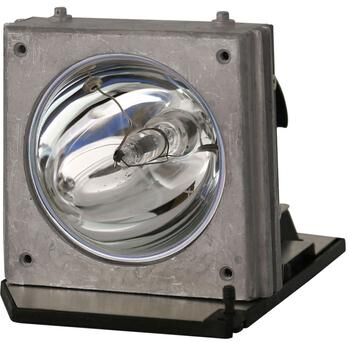
AL™ Series Lamp & Housing for the Medion MD2950NA Projector - 90 Day WarrantyNew aftermarket Lamp and Housing for the following Medion models: MD2950NA Lamp Specifications Specifications Data Product Code MD2950NA Part Type Lamp and Housing Warranty 90 Days Condition New Lamp Type Genuine AL™ Series Discounts Available...72,99 $*Shipping: 0,00 $Secure redirect to the provider
-
Jaspertronics™ Original Lamp & Housing for the Medion MD2950NA Projector - 1 Year WarrantyNew Jaspertronics™ Original Lamp & Housing Module for the following Medion models: MD2950NA Lamp Specifications Specifications Data Product Code MD2950NA Part Type Lamp and Housing Warranty Industry Leading 1 Year Warranty Condition New Lamp Type...119,99 $*Shipping: 0,00 $Secure redirect to the provider
-
Why doesn't the Medion Mobile Stick work?
The Medion Mobile Stick may not work due to several reasons such as compatibility issues with the device it is being used with, outdated software or drivers, network coverage issues, or a faulty hardware component. It is important to ensure that the device and software are up to date, the network coverage is sufficient, and the hardware components are functioning properly. Troubleshooting steps such as restarting the device, reinstalling drivers, or contacting customer support may help resolve the issue. **
-
Why is the Medion Mobile Stick not working?
The Medion Mobile Stick may not be working due to a variety of reasons such as a poor network connection, outdated software or drivers, incorrect APN settings, or a faulty USB port. It is important to troubleshoot each of these potential issues to determine the exact cause of the problem. Additionally, contacting customer support for further assistance may help in resolving the issue. **
-
How can you install apps on a Medion Smart TV?
To install apps on a Medion Smart TV, you can access the app store by pressing the "Home" button on your remote control and selecting the "App Store" option. From there, you can browse through the available apps and select the ones you want to install. Once you have chosen an app, you can download and install it by following the on-screen instructions. Some Medion Smart TVs also allow you to install apps by connecting an external device, such as a USB drive, that contains the app files. **
-
How can one install apps on a Medion Smart TV?
To install apps on a Medion Smart TV, you can use the pre-installed app store on the TV. Navigate to the app store using your remote control, search for the app you want to install, and then follow the on-screen instructions to download and install it. You can also use a USB drive to sideload apps onto your Medion Smart TV by downloading the app APK file onto the USB drive from a computer, then plugging the USB drive into the TV and using the file manager to locate and install the app. **

How can you take a screenshot on a Medion device?
To take a screenshot on a Medion device, you can typically press the power button and the volume down button simultaneously for a few seconds. This will capture a screenshot of whatever is currently displayed on the screen. You can then find the screenshot in your device's gallery or photos app. If this method doesn't work, you can also try pressing and holding the power button and home button at the same time to take a screenshot. **
In which device is the DVD inserted, in the Medion television?
The DVD is inserted into the built-in DVD player of the Medion television. This allows the user to watch DVDs directly on the television without the need for an external DVD player. The convenience of having a built-in DVD player eliminates the need for extra cables and devices, making it easier to enjoy movies and other content. **
Top-Angebote
Products related to Medion:
-
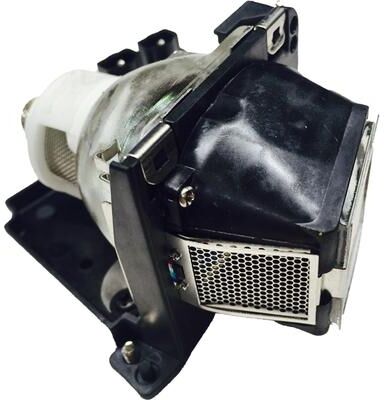
AL™ Series Lamp & Housing for the Medion MD32980 Projector - 90 Day WarrantyNew aftermarket Lamp and Housing for the following Medion models: MD32980 Lamp Specifications Specifications Data Product Code MD32980 Part Type Lamp and Housing Warranty 90 Days Condition New Lamp Type Genuine AL™ Series Discounts Available Volume,...54,99 $*Shipping: 0,00 $Secure redirect to the provider
-
AL™ Series Lamp & Housing for the Medion MD30053 Projector - 90 Day WarrantyNew aftermarket Lamp and Housing for the following Medion models: MD30053 Lamp Specifications Specifications Data Product Code MD30053 Part Type Lamp and Housing Warranty 90 Days Condition New Lamp Type Genuine AL™ Series Discounts Available Volume,...54,99 $*Shipping: 0,00 $Secure redirect to the provider
-
Jaspertronics™ Original Lamp & Housing for the Medion MD30053 Projector - 1 Year WarrantyNew Jaspertronics™ Original Lamp & Housing Module for the following Medion models: MD30053 Lamp Specifications Specifications Data Product Code MD30053 Part Type Lamp and Housing Warranty Industry Leading 1 Year Warranty Condition New Lamp Type...98,99 $*Shipping: 0,00 $Secure redirect to the provider
-
Does the Medion Wireless LAN Internet Radio have interruptions?
The Medion Wireless LAN Internet Radio may experience interruptions depending on the strength and stability of the wireless network it is connected to. If the network experiences interference or signal drops, it can result in interruptions to the radio's streaming. Additionally, the quality of the internet connection and the distance from the router can also impact the radio's performance. It is important to ensure a strong and stable wireless network to minimize interruptions while using the Medion Wireless LAN Internet Radio. **
-
How do I activate the wireless function on Medion?
To activate the wireless function on a Medion device, you can typically do so by pressing the wireless function key on the keyboard. This key is usually labeled with an icon that looks like a radio tower or antenna. Pressing this key should toggle the wireless function on or off. Additionally, you can also activate the wireless function by accessing the network settings in the control panel or system settings and enabling the wireless network adapter. **
-
Why doesn't the Medion Mobile Stick work?
The Medion Mobile Stick may not work due to several reasons such as compatibility issues with the device it is being used with, outdated software or drivers, network coverage issues, or a faulty hardware component. It is important to ensure that the device and software are up to date, the network coverage is sufficient, and the hardware components are functioning properly. Troubleshooting steps such as restarting the device, reinstalling drivers, or contacting customer support may help resolve the issue. **
-
Why is the Medion Mobile Stick not working?
The Medion Mobile Stick may not be working due to a variety of reasons such as a poor network connection, outdated software or drivers, incorrect APN settings, or a faulty USB port. It is important to troubleshoot each of these potential issues to determine the exact cause of the problem. Additionally, contacting customer support for further assistance may help in resolving the issue. **
Similar search terms for Medion
-
AL™ Series Lamp & Housing for the Medion MD2950NA Projector - 90 Day WarrantyNew aftermarket Lamp and Housing for the following Medion models: MD2950NA Lamp Specifications Specifications Data Product Code MD2950NA Part Type Lamp and Housing Warranty 90 Days Condition New Lamp Type Genuine AL™ Series Discounts Available...72,99 $*Shipping: 0,00 $Secure redirect to the provider
-
Jaspertronics™ Original Lamp & Housing for the Medion MD2950NA Projector - 1 Year WarrantyNew Jaspertronics™ Original Lamp & Housing Module for the following Medion models: MD2950NA Lamp Specifications Specifications Data Product Code MD2950NA Part Type Lamp and Housing Warranty Industry Leading 1 Year Warranty Condition New Lamp Type...119,99 $*Shipping: 0,00 $Secure redirect to the provider
-
Jaspertronics™ Lamp & Housing for the Medion MD32980 Projector w Original Ushio Lamp Inside - 1 Year WarrantyNew Jaspertronics™ Original Lamp & Housing Module for the following Medion models: MD32980 Lamp Specifications Specifications Data Product Code MD32980 Part Type Lamp and Housing Warranty Industry Leading 1 Year Warranty Condition New Lamp Type...94,99 $*Shipping: 0,00 $Secure redirect to the provider
-
Medion Erazer P10 – Intel Core i7-12700H, 16GB RAM, 512GB SSD, NVIDIA GeForce RTX 3060, 15.6" 165Hz Gaming Laptop (Black), Used - GoodThe Medion Erazer P10 is a high-performance gaming laptop engineered for serious gamers and power users who demand speed, precision, and immersive graphics. Equipped with a 12th Gen Intel Core i7-12700H processor, NVIDIA GeForce RTX 3060 GPU, and a 165Hz Full HD display, it delivers smooth gameplay, rapid multitasking, and next-level performance for gaming, content creation, and productivity. Intel Core i7-12700H (14-core, 20-thread) processor delivers exceptional power for gaming, streaming, and demanding creative tasks. NVIDIA GeForce RTX 3060 (6GB GDDR6) provides real-time ray tracing and AI-enhanced graphics for realistic visuals and competitive performance. 15.6-inch Full HD display with 165Hz refresh rate ensures ultra-smooth motion, perfect for FPS and action gaming. 16GB DDR4 RAM for seamless multitasking and fast game loading. 512GB NVMe SSD for lightning-fast boot times and rapid data access. Custom cooling system with dual fans to maintain performance during long gaming sessions. RGB backlit keyboard allows custom lighting profiles for gaming aesthetics. Nahimic 3D audio enhances in-game soundscapes and directional awareness. Wi-Fi 6 and Bluetooth 5.2 for fast, stable connectivity. Durable matte black chassis with clean, minimalist design for both gaming and professional use. Windows 11 Home pre-installed for a fast, secure, and gamer-friendly experience. The Medion Erazer P10 delivers power, precision, and performance — the perfect laptop for gaming, editing, and multitasking. Specification Details Model Medion Erazer P10 Processor Intel Core i7-12700H (14 Cores, 20 Threads, up to 4.7GHz) Graphics Card NVIDIA GeForce RTX 3060, 6GB GDDR6 Display 15.6-inch Full HD (1920 × 1080), 165Hz, IPS Memory (RAM) 16GB DDR4 Storage 512GB PCIe NVMe SSD Operating System Windows 11 Home Keyboard RGB Backlit Audio Nahimic 3D Audio Connectivity Wi-Fi 6, Bluetooth 5.2 Ports USB-C, USB 3.2, HDMI, Ethernet, Audio Combo Jack Cooling System Dual-Fan Thermal Cooling Battery 4-Cell Lithium-Ion, Approx. 6 Hours (Typical Use) Chassis Colour Black Dimensions Approx. 359 × 259 × 23.5 mm Weight Approx. 2.4 kg849,00 £*Shipping: 0,00 £Secure redirect to the provider
-
How can you install apps on a Medion Smart TV?
To install apps on a Medion Smart TV, you can access the app store by pressing the "Home" button on your remote control and selecting the "App Store" option. From there, you can browse through the available apps and select the ones you want to install. Once you have chosen an app, you can download and install it by following the on-screen instructions. Some Medion Smart TVs also allow you to install apps by connecting an external device, such as a USB drive, that contains the app files. **
-
How can one install apps on a Medion Smart TV?
To install apps on a Medion Smart TV, you can use the pre-installed app store on the TV. Navigate to the app store using your remote control, search for the app you want to install, and then follow the on-screen instructions to download and install it. You can also use a USB drive to sideload apps onto your Medion Smart TV by downloading the app APK file onto the USB drive from a computer, then plugging the USB drive into the TV and using the file manager to locate and install the app. **
-
How can you take a screenshot on a Medion device?
To take a screenshot on a Medion device, you can typically press the power button and the volume down button simultaneously for a few seconds. This will capture a screenshot of whatever is currently displayed on the screen. You can then find the screenshot in your device's gallery or photos app. If this method doesn't work, you can also try pressing and holding the power button and home button at the same time to take a screenshot. **
-
In which device is the DVD inserted, in the Medion television?
The DVD is inserted into the built-in DVD player of the Medion television. This allows the user to watch DVDs directly on the television without the need for an external DVD player. The convenience of having a built-in DVD player eliminates the need for extra cables and devices, making it easier to enjoy movies and other content. **
* All prices are inclusive of VAT and, if applicable, plus shipping costs. The offer information is based on the details provided by the respective shop and is updated through automated processes. Real-time updates do not occur, so deviations can occur in individual cases. ** Note: Parts of this content were created by AI.